Jul 31, 2009

How to Find the IP Address of a Remote Computer

Find IP AddressMost of you may be curious to know how to find the IP address of your friend’s computer or to find the IP address of the person with whom you are chatting in Yahoo messenger or Gtalk. In this post I’ll show you how to find the IP address of a remote computer in simple steps.

I have created a PHP script to make it easier for you to find the IP address of the remote computer of your choice. Here is a step-by-step process to find out the IP address.

1. Download the IP Finder script (IP_Finder.ZIP) that I have created.

2. Open a new account in X10Hosting (or any free host that supports PHP).

3. Extract the IP_Finder.ZIP file and upload the two files ip.php and ip_log.txt into the root folder of your hosting account using the File Manager.

4. You can rename the ip.php to any name of your choice.

5. Set the permission to 777 on ip_log.txt.

Now you are all set to find the IP address of your friend or any remote computer of your choice. All you have to do is send the link of ip.php to your friend or the person with whom you’re chatting. Once the person click’s on the link, his/her IP address is recorded in the file ip_log.txt.

For your better understanding let’s take up the following example.

Suppose you open a new account in X10hosting.com with the subdomain as abc, then your IP Finder link would be

http://abc.x10hosting.com/ip.php

You have to send the above link to you friend via email or while chatting and ask him to visit that link. Once your friend clicks on the link, his IP address will be recorded along with the Date and Time in the ip_log.txt file. After recording the IP address, the script will redirect the person to google.com so as to avoid any suspicion.

To find the recorded IP address check the logs using the following link.

http://abc.x10hosting.com/ip_log.php

The sample log will be in the following format

79.92.144.237 Thursday 07th of May 2009 05:31:27 PM
59.45.144.237 Thursday 07th of May 2009 05:31:28 PM
123.92.144.237 Thursday 07th of May 2009 05:31:31 PM

NOTE: You have to replace abc with your subdomain name.

I hope this helps. Express your opinion and suggestions through comments.

Read rest of entry

How to Change the ICON of an EXE file

Some times it becomes necessary to change the ICON of an executable(.exe) file so that the exe file get’s a new appearence.Many of the Tools such as TuneUP Winstyler does this job by adjusting the Windows to display a custom icon to the user.But in reality when the file is carried to a different computer, then it shows it’s original ICON itself.This means that inorder to permanantly change the ICON, it is necessary to modify the executable file and embed the ICON inside the file itself.Now when this is done the exe file’s ICON is changed permanantly so that even if you take file to a different computer it show’s a new icon.

For this purpose I have found a nice tool which modifies the exe file and will embed the ICON of your choice into the file itself. ie:The tool changes the exe ICON permanantly.

I’ll give you a step-by-step instruction on how to use this tool to change the icon.

1. Goto www.shelllabs.com and download the trial version of Icon Changer and install it (Works on both XP and Vista).

2. Right-click on the exe file whose ICON is to be changed.

3. Now you will see the option Change Icon…Click on that option.

4. Now the Icon Changer program will open up.

5. Icon changer will search for all the ICONS on your system so that you can select any one of those.

6. Now select the ICON of your choice and click on SET.

7. Now a popup window will appear and ask you to select from either of these two options.

  • Change embeded icon.
  • Adjust Windows to display custom icon.

Select the first option (Change embeded icon).

8. You are done.The ICON get’s changed.

Read rest of entry

Hack Mobile Phones Through Bluetooth

Yes guys it is the mobile bluetooth hacker. It is a software which can be used to hack any mobile phone through bluetooth network. Once connected to a another phone via bluetooth you can do the following:

1) Call from his phone. It includes all call functions like hold etc.
2) Read his messages
3) Read his contacts
4) Change profile

5) Play his ringtone even if phone is on silent
6) Play his songs(in his phone)
7) Restart the phone
8) Switch off the phone
9) Restore factory settings
10) Change ringing volume

Notes:

1.) When connecting devices use a code 0000
2.) At start of programming on smartphones do not forget to turn on bluetooth before start of the application
What else you want
Just go and downlaod it
download
enjoy and keep visiting us

Password : www.dl4all.com


Read rest of entry

Latest Proxies for Free Airtel GPRS

airtel_logoI have got a lot of comments that the settings for free Airtel GPRS that I had posted earlier doesn’t work. So I have found out another hack to get free GPRS on Airtel. The following settings have been tested in different States and are found to be successfully working on most of them.

I have got 2 settings which you can tryout to see if any of them works for you.

First
IP Address :: 10.49.16.10
Port :: 8877
APN :: airtelfun.com

Second
IP Address :: 200.199.82.61
Port :: 8080
APN :: airtelmms.com

second one works in some states only

I have also got some IP Addresses and Open Ports which are working for different Users so I have listed them. You can tryout if the above settings doesn’t work.

Working IP Addresses
(a) 10.2.45.155
(b) 10.49.16.10
(c) 10.4.1.55
(d) 10.6.6.6
(e) 10.89.15.15
(f) 100.1.200.467
(g) 100.1.200.211 (this one is for west bengal)

Ports
(a) 8080
(b) 9421
(c) 9201

Read rest of entry

Top Reasons why you shouldn’t buy an iphone

Are you planning to buy an iphone ? If so then this post is a must read for you.The much hyped iPhone 3G was launched in India a few weeks back and we have seen many issues and open security flaws in the new iPhone.Here I have some of the top reasons for which you shouldn’t buy an iphone.

  • The worst thing is that you cannot forward a SMS message!! Don’t think that I am foolish, but really your iPhone 3G can’t forward a simple SMS. You’ll have to retype the SMS and forward it.
  • There is NO copy / paste functionality. So you need to remember the texts and type again as you go.
  • Bluetooth functionality is only limited to headset use. You can’t do any file transfer over Bluetooth.So if you are planning to share your songs or photos with your friends then forget about it!
  • Absolutely no camera settings – it’s just like some ancient digital camera which does only point and shoot functionality.No Flash,No Zoom functionality.
  • Photos taken in a VGA camera is better than that of iphone!
  • The iPhone 3G is simply overpriced in India (Costs almost twice the price as in US)
  • It’s in built Safari web browser does not support Flash as well as Java.
  • There is No office document editor. Most Nokia’s come with inbuilt editor’s for Word / Excel.
  • The iPhone doesn’t has AD2P on the Bluetooth – which means you can’t get stereo sound via Blue Tooth headphones, that’s a big disappointment for the music fans.
  • The iPhone doesn’t has a Removable battery. Yes – you cannot change the battery yourself. Apple expects you to send the phone to an Apple Outlet to replace the battery. Now if you travel too much – what are you gonna do? Look for an Apple Store to interchange the travel battery?
  • iPhone doesn’t has an option to send MMS. Forget about MMS.
  • Though you can’t sent MMS – You can’t receive MMS messages too!
  • You can’t set your personal songs as ring tones!
  • The iPhone’s screen is not Finger Print Resistant. Since the iPhone is a touch screen phone so it is bound to get your finger print’s each time you touch so it gets dirty very easily.
  • THE BIGGEST ONE – ONCE YOU ARE ON 3G NETWORK(Which I suppose will happen in a year in India), YOU CANNOT MAKE CALLS TO A PHONE ON 2G NETWORK. SO IF YOU WANT TO CALL A PERSON WHO IS NOT HAVING A 3G PHONE. SORRY, YOU’LL HAVE TO FIND A PCO and a 1RUPEE!!!

These are some of the top reasons that shows iphone’s incapability.But there are many more such reasons for you to stop buying an iphone.If you still want to buy the iphone then definitely you must be crazy?!

Read rest of entry

Hack BSNL Broadband for Speed


If you are a BSNL broadband user, chances are that you are facing frequent DNS issues. Their DNS servers are just unresponsive. The look up takes a long duration and many times just time out. The solution? There is small hack on BSNL for this. Use third party DNS servers instead of BSNL DNS servers or run your own one like djbdns. The easiest options is to use OpenDNS. Just reconfigure your network to use the following DNS servers:

208.67.222.222
208.67.220.220

Detailed instructions specific to operating system or your BSNL modem are available in the OpenDNS website itself. After I reconfigured my BSNL modem to use the above 2 IP addresses, my DNS problems just vanished! Other ‘freebies’ that come with OpenDNS are phishing filters and automatic URL correction. Even if your service provider’s DNS servers are working fine, you can still use OpenDNS just for these two special features.After you hack BSNL DNS servers, you will see a noticeable improvement in your broadband speed.

Read rest of entry

Hacking your School, College

getting over the blocked sites


u can try google translator .. or one proxy which i found intresting was greenpips.com try that or . try this http://64.233.179.104/translate_c?hl=de&ie=UTF-8&oe=UTF-8&langpair=de%7Cen&u=http://www.your website.com/ change the last part to the website you like to access

contributed by
Muhajir.K.M

Hacking at school


This tutorial is aimed at school servers running Windows underneath (most of them do). It works definitely with Windows 98, 2000, Me, and XP. never tried it with 95, but it should work anyway. However, schools can stop Batch files from working, but it is very uncommon for them to be that switched on.


There are problems with school servers, and they mostly come back to the basic architecture of the system - so the admins are unlikely to do anything about it! In this article I will discuss how to bypass web filtering software at school, send messages everywhere you want, create admin accounts, modify others' accounts, and generally cause havok. Please note that I ahve refrained from giving away information that will actually screw up your school server, though intelligent thinkers will work it out. THis is because, for god sakes, this is a school! Don't screw them up!


How to get it all moving


An MS-DOS prompt is the best way to do stuff, because most admins don't think its possible to get them and, if they do, they just can't do anything much about it.

First, open a notepad file (if your school blocks notepad, open a webpage, right click and go to view source. hey presto, notepad!). Now, write

command.com

and save the file as batch.bat, or anything with the extension .bat . Open this file and it will give you a command prompt:) (for more information on why this works, look to the end of the article). REMEMBER TO DELETE THIS FILE ONCE YOU'VE FINISHED!!! if the admins see it, they will kill you;)


Bypassing that pesky web filtering


Well, now you've got a command prompt, it's time to visit whatever site you want. Now, there are plenty of ways to bypass poorly constructed filtering, but I'm going to take it for granted that your school has stopped these. This one, as far as I know, will never be stopped.

in your command prompt, type

ping hackthissite.org

or anything else you wanna visit. Now you should have a load of info, including delay times and, most importantly, an IP address for the website. Simply type this IP address into the address bar, preceded by http://, and you'll be able to access the page!

For example: http://197.57.189.10 etc.

Now, I've noticed a lot of people have been saying that there are other ways to bypass web filtering, and there are. I am only mentioning the best method I know. Others you might want to try are:

1) Using a translator, like Altavista's Babel fish, to translate the page from japanese of something to english. This will bypass the filtering and won't translate the page, since it's already in English.

2) When you search up the site on Google, there will be a link saying 'Cache'. Click that and you should be on.

3) Use a proxy. I recommend Proxify.com. If your school has blocked it, search it up on Google and do the above. Then you can search to your heart's content:)


Sending messages out over the network


Okay, here's how to send crazy messages to everyone in your school on a computer. In your command prompt, type

Net Send * "The server is h4x0r3d"

*Note: may not be necessary, depending on how many your school has access too. If it's just one, you can leave it out*

Where is, replace it with the domain name of your school. For instance, when you log on to the network, you should have a choice of where to log on, either to your school, or to just the local machine. It tends to be called the same as your school, or something like it. So, at my school, I use

Net Send Varndean * "The server is h4x0r3d"

The asterisk denotes wildcard sending, or sending to every computer in the domain. You can swap this for people's accounts, for example

NetSend Varndean dan,jimmy,admin "The server is h4x0r3d"

use commas to divide the names and NO SPACES between them.


Adding/modifying user accounts


Now that you have a command prompt, you can add a new user (ie yourself) like so

C:>net user username /ADD

where username is the name of your new account. And remember, try and make it look inconspicuous, then they'll just think its a student who really is at school, when really, the person doesn't EXIST! IF you wanna have a password, use this instead:

C:>net user username password /ADD

where password is the password you want to have. So for instance the above would create an account called 'username', with the password being 'password'. The below would have a username of 'JohnSmith' and a password of 'fruity'

C:>net user JohnSmith fruity /ADD

Right then, now that we can create accounts, let's delete them:)

C:>net user JohnSmith /DELETE

This will delete poor liddle JohnSmith's account. Awww. Do it to you enemies:P no only joking becuase they could have important work... well okay only if you REALLY hate them:)

Let's give you admin priveleges:)

C:>net localgroup administrator JohnSmith /ADD

This will make JohnSmith an admin. Remember that some schools may not call their admins 'adminstrator' and so you need to find out the name of the local group they belong to.

You can list all the localgroups by typing

C:>net localgroup

Running .exe files you can't usually run

In the command prompt, use cd (change directory) to go to where the file is, use DIR to get the name of it, and put a shortcut of it on to a floppy. Run the program off the floppy disk.

Well, I hope this article helped a bit. Please vote for me if you liked it:) Also, please don't go round screwing up your school servers, they are providing them free to you to help your learning.

I will add more as I learn more and remember stuff (I think I've left some stuff out - this article could get very long...)
Read rest of entry

Find who is Invisible on Yahoo messenger

Just go to

http://www.invisible.ir
http://www.xeeber.com

and enter victims Yahoo! ID… Click go and you are done!

credit : site contributer :

it works !!


Sometimes some of your friends who appear offline in yahoo messenger may not be actually offline,they may in the 'Invisible' mode.This maybe if they are trying to ignore you or are too busy to talk to anyone.

There is this small trick that you can use to find out what the truth is.

Firstly open your yahoo messenger main window and double click on the name of the person whom you want to check.The chat window will open obviously.

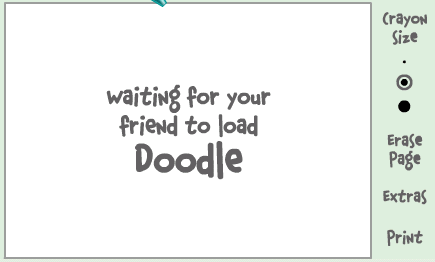
Click IMVironment button, select See all IMVironments, select Yahoo! Tools or Interactive Fun, and click on Doodle.
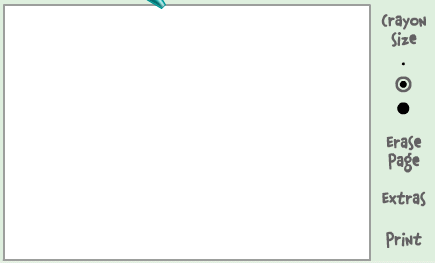
After loading the Doodle imvironment there can be two possibilities

1.If the user is offline Doodle are will show this "waiting for your friend to load Doodle" continuously .See in the picture below:

Find who is Invisible on Yahoo messenger - The Ethical Hacking 2. If the user is online (but in invisible mode), after few seconds (it can take up to one minute, depending on your connection speed), you should get a blank page like in the picture below.So you know that the user is online.

Find who is Invisible on Yahoo messenger - The Ethical Hacking


Alternate Method:


Chose a person you want to check .Double click to open the chat window.Now simply invite the person for a voice conference.This is done by clicking on the "conference' button on the top of the chat window.
If the talk button appears and turns green then that person is online.But if you receive the message 'Voice chat could not be started ' then the person is offline.

Note:Some people use softwares like buddy spy to check who is invisible.I DONT RECOMMEND you to use such third party softwares as they can expose your Pc to hackers by sending your personal information and can even steal information from your Pc.So avoid such softwares and instead use the simple tricks given above.

If you have any queries or would like to make some useful contribution to this topic feel free to drop a line in the comments section.
Read rest of entry

Jul 30, 2009

Vista Transformation Pack 7.0 with Key


This is the most tired release I've ever been through. I wonder if user who
get this will appreciate how hard I really went through for this. It seems
Lee is being too messy right now so I won't hold back any longer. This
release has overall improvements for features compared to previous versions
and has a lot of user interface refinements for ease of use with end-user.
You will find this program is amazingly easier comparing to all other shell
packs. Let's see the changelog of this release.

*Changes in Version 7.0*

-Added default system font option for recovery
-Added Docking support for preview and taskbar replacement
-Added DPI auto-detection in Machine Configuration
-Added hiding menubar option for Vista (Styler) toolbar
-Added information about KB925902 hotfix issues and solution on startup
-Added memory requirements checking for 3rd-party applications
-Added resetting DPI options and some extra information in Machine
Configuration
-Added screen resolution auto-detection
-Added setting cleartype font automatically after the transformation
-Added Vista transformation "Express mode" (Make an appropriate setup
configuration in single page!)
-Added ViStart (Vista Start Menu port for Windows XP/2003 with glass UI and
search function)
-Added uninstalling existing components before updating
-Added WindowBlinds detection warning message (for user who is mistaken
about glass border skin)
-Added Windows Server 2003 Service Pack 2 uxtheme patching support
-Fixed backing up system files bug on repair mode
-Fixed checking for Styler incompatibility with x64 edition OS
-Fixed fileversion checking bug that cause backup
systemfiles
being overwritten by modified system files when update
-Fixed operating system checking bug (that allow user to install in Windows
2000 and below)
-Fixed Start Orb positioning bug
-Fixed Styler to execute Styler.exe only when user wants to hide menu bar to
save up memory and some weird issues
-Fixed Styler to run in toolbar mode (prevent error and message popup)
-Fixed Vista (Styler) toolbar option with correction of menubar
-Fixed uninstalling bug with system drive icon
-Fixed uninstalling routines
-Fixed uxtheme.dll patching detection bugs on machine without any service
pack
-Fixed Windows Live Messenger skin uninstallation bug
-Moved extra dialogs in the main dialogs process so user can make all
decisions before transforming
-Removed customized open/save dialog due to bugs in some applications
-Replaced closeapp with pskill (some programs reported closeapp as
virusthough
it isn't)
-Replaced Blaero's Start Orb with ViOrb (Auto positioning and snap over the
start button upon taskbar shifting)
-Updated battery tray icons
-Updated Getting Started and Help and Support FAQ
-Updated LClock x86 to version 1.62b
-Updated Maintenance Center to be Welcome Center
-Updated minor UI graphic resources in themes
-Updated Segoe UI font
-Updated Shutdown/Logoff dialogs
-Updated Start Orb to full circle version
-Updated Thoosje's Vista sidebar to version 2.1
-Updated transformation to use backup system file if it has the same
fileversion during update
-Updated updating function to uninstall previous components before updating
-Updated Vista logon screen (Thanks to SoFtEcH for updating my logon)
|-Added status message (Welcome, Shutdown, etc.)
|-Fixed user account disapperance bug on lower resolution
|-Fixed user account moving around when focused
|-Moved shutdown button to right part
|-Updated password panel resources
|-Updated userpicture's frame border
-Updated Visualtooltip to version 2.1

*Download link for VTP 7*
http://rapidshare.com/files/39462735/Vista_Transformation_Pack_7.rar


*Download link for WinBlinds*

http://rapidshare.com/files/39466784/Winblinds5.50_support.for.vista_withcrack.rar

OR


http://rapidshare.com/files/35739370/BricoPack_Vista_Inspirat_Ultimate_2_1.0_full-_5Bp30download.com_5D.zip
Read rest of entry

Xp Registry tricks

Xp Registry tricks

Its a mixed bag.. a compilation of all the tricks..
many tricks are what i discovered..
many are shared ..
keep posting if u know more


Display Your Quick Launch ToolbarTip: 


Is your Quick Launch toolbar missing from the taskbar?
To display your familiar Quick Launch toolbar:
Right-click an empty area on the taskbar, click Toolbars, and then click Quick Launch. 

Easy as that your Quick Launch bar appears. To add items to your Quick Launch toolbar, click the icon for the program you want to add, and drag it to the Quick Launch portion of the taskbar. 


--------------------------------------------------------------------------------

How to remove recycle bin from your desktop Tip:

Open Regedit by going to START - RUN and type Regedit and hit enter. Then you should navigate to following entry in registry HKEY_LOCAL_MACHINE\SOFTWARE\Microsoft\Windows\CurrentVersion\Explorer\
Desktop\NameSpace\{645FF040-5081-101B-9F08-00AA002F954E} and delete it. This action should remove recycle bin from your desktop. 

--------------------------------------------------------------------------------

How to stop new programs installed balloon from coming up tip:

Right click on START button and select properties. Click on Customize and go to Advanced tab and deselect check box saying "Highlight newly installed programs". This would help you stop this annoying feature from popping up every now and then.


--------------------------------------------------------------------------------
Unlock Toolbars to Customize Them Tip: 

The new Windows XP now features locking toolbars, and you can adjust them. You may customize a lot of the Windows XP features such as the Taskbar, Start Menu, and even toolbar icons in Internet Explorer and Outlook Express. Remember your right-click:
* Right-click on a toolbar, and then click Lock the Toolbars to remove the check mark. 
* Right-click on the toolbar again, and then click Customize. 

You may add or remove toolbar buttons, change text options and icon options. When you've got the toolbar customized, click Close. Now right-click on the toolbar and then click Lock the Toolbars to lock them in place. com


--------------------------------------------------------------------------------

Want to remove shared documents folder from My Computer window tip: 

Some don't like my shared documents folder option. If you are one of that, here is a trick to remove it.Open registry editor by going to START-RUN and entering regedit. 
Once in registry, navigate to key HKEY_LOCAL_MACHINE \ SOFTWARE \ Microsoft \ Windows \ CurrentVersion \ Explorer \ My Computer \ NameSpace \ DelegateFolders You must see a sub-key named {59031a47-3f72-44a7-89c5-5595fe6b30ee}. If you delete this key, you have effectively removed the my shared documents folder.

--------------------------------------------------------------------------------

--------------------------------------------------------------------------------

How to improve on shutdown time ? Close apps automatically & quickly at shutdown tip:

Open Registry by going to START-RUN and typing REGEDIT. Navigate to HKEY_CURRENT_USER\CONTROL PANEL\DESKTOP and look for AutoEndTasks. On my computer default value is 0. Change it to 1. Thats all. Further more you can reduce the time it takes for Windows to issue kill directive to all active/hung applications. 
In doing this only constraint that you should make sure exists is that HungAppTimeout is greater than WaitToKillAppTimeout. Change the values of WaitToKillAppTimeout to say 3500 (since default value for HungAppTimeout 5000 and for WaitToKillAppTimeout is 20000)


--------------------------------------------------------------------------------
Are you missing icons Tip:


Are you missing icons? You may be wondering where all the icons from your desktop are in Windows XP? Well if you're like me, you like to have at least My Computer, My Network Places, and My Documents on the your desktop. 
You need to: 
* Right-click on the desktop, and then click Properties. 
* Click the Desktop tab and then click on Customize Desktop. 
* Put a check mark in the box next to My Document, My Computer, My Network Places, or Internet Explorer, to add those familiar icons to your desktop. Easy yes! 

--------------------------------------------------------------------------------

How to login as administrator if you don't see it available tip:

Unless and until you have run into issues and fixing XP (underwhich case you have to go to Safe Mode to login as Administrator), you can get to administrator screen by simply pressing CTRL+ALT+DELETE twice at the main screen.

--------------------------------------------------------------------------------

Speedup boot up sequence by defragmenting all key boot files tip:

Open Registry by going to START-RUN and typing REGEDIT. Navigate to HKEY_LOCAL_MACHINE\SOFTWARE\Microsoft\Dfrg\BootOptimizeFunction. In right hand panel look for Enable. Right click on it and set it 'Y' for enable. This is the way I have it set on my computer. This will help speedup boot time.


Use a Shortcut to Local Area Network Connection Information: 


--------------------------------------------------------------------------------

Use a Shortcut to Local Area Network Connection Information Tip:


Here's something new in Windows XP, instead of using the command line program and typing ipconfig to get local area network information, you can try using the following shortcut:
* Click on Start, point to Connect to, and then click Show All Connections. 
* Right–click the connection you want information about, and then click Status. 
* In the connection Properties dialog box, click the Support tab. 
* For more information, click on the Advanced tab. 

To automatically enable the status monitor each time the connection is active, in the connection Properties dialog box, select the Show icon in taskbar notification area when connected check box.

--------------------------------------------------------------------------------

Do you know you can have Virtual Desktops (like in Linux) with PowerToys ?

If you have powertoys installed on Windows XP Its available for free at Microsoft download webpage. It is very easy to enable Microsoft Virtual Desktop Feature. Simply right click on the Start Panel Bar also called TaskBar, Click on Tool Bar and select Desktop manager. 
You would see a set of 5 icons placed on the right portion of the TAskBar. Click on number 1 to 4 to go to any of the desktops. Now you have have four different Active Desktops.
IMPORTANT NOTE: You may see a little degradation in performance. 

--------------------------------------------------------------------------------

Customize Internet. Explorer Title bar tip:

This tip won't make your computer any faster but may help personalize your computer experience. Open Registry by going to START-RUN and typing REGEDIT. Navigate to HKEY_CURRENT_USER\Software\Microsoft\Internet. Explorer\Main. In right hand panel look for string "Window Title" and change its value to whatever custom text you want to see. 
--------------------------------------------------------------------------------

adding content to Right click credit : ashwin C1

Once done, you will be able to right click any file or folder and use the Browse for Folder dialog to choose the location you want to move or copy your file or folder to, without having to go to the destination path.

First we will add the copy and move options to the right click menu of all FILES.
CLICK Start>Run, type REGEDIT and click OK to open up the registry editor and make your way to this key:
HKEY_CLASSES_ROOT->*->shellex->ContextMenuHandlers
Right click the ContextMenuHandlers key and choose New>Key.
Name the new key “Copy To” (without the quotes).
Repeat the above and create another new key named Move To.
You should now have two new subkeys under the ContextMenuHandlers key:
HKEY_CLASSES_ROOT->*->shellex->ContextMenuHandlers\Copy To
HKEY_CLASSES_ROOT->*->shellex->ContextMenuHandlers\Move To
Select the Copy To key and in the right hand pane, double click “Default”
Enter this clsid value as the value data:
{C2FBB630-2971-11d1-A18C-00C04FD75D13}
Next , select the Move To key and in the right hand pane set the default value to:
{C2FBB631-2971-11d1-A18C-00C04FD75D13}
This now takes care of the Copy and Move options for the right click context menu of all your files.
Now all that is left is to add the same options to the right click menu of all your folders.
The procedure will be the same as for files but at a different key:
HKEY_CLASSES_ROOT\Directory\shellex\ContextMenuHan dlers
Right click ContextMenuHandlers and create a new key named Copy To.
Right click it again and create another new key named Move To.
left click on the right hand pane, add the same default values as you did for Files:
For Copy To:
{C2FBB630-2971-11d1-A18C-00C04FD75D13}
For the Move To:
{C2FBB631-2971-11d1-A18C-00C04FD75D13}
Exit the registry and you are done.
Now when you right click on a file or folder, you should see two new options: Copy to Folder and Move to Folder

Read rest of entry

20 things you didn't know about Windows XP

1. It boasts how long it can stay up. Whereas previous versions of Windows were coy about how long they went between boots, XP is positively proud of its stamina. Go to the Command Prompt in the Accessories menu from the All Programs start button option, and then type 'systeminfo'. The computer will produce a lot of useful info, including the uptime. If you want to keep these, type 'systeminfo > info.txt'. This creates a file called info.txt you can look at later with Notepad. (Professional Edition only).

2. You can delete files immediately, without having them move to the Recycle Bin first. Go to the Start menu, select Run... and type 'gpedit.msc'; then select User Configuration, Administrative Templates, Windows Components, Windows Explorer and find the Do not move deleted files to the Recycle Bin setting. Set it. Poking around in gpedit will reveal a great many interface and system options, but take care -- some may stop your computer behaving as you wish. (Professional Edition only).

3. You can lock your XP workstation with two clicks of the mouse. Create a new shortcut on your desktop using a right mouse click, and enter 'rundll32.exe user32.dll,LockWorkStation' in the location field. Give the shortcut a name you like. That's it -- just double click on it and your computer will be locked. And if that's not easy enough, Windows key + L will do the same.

4. XP hides some system software you might want to remove, such as Windows Messenger, but you can tickle it and make it disgorge everything. Using Notepad or Edit, edit the text file /windows/inf/sysoc.inf, search for the word 'hide' and remove it. You can then go to the Add or Remove Programs in the Control Panel, select Add/Remove Windows Components and there will be your prey, exposed and vulnerable.

5. For those skilled in the art of DOS batch files, XP has a number of interesting new commands. These include 'eventcreate' and 'eventtriggers' for creating and watching system events, 'typeperf' for monitoring performance of various subsystems, and 'schtasks' for handling scheduled tasks. As usual, typing the command name followed by /? will give a list of options -- they're all far too baroque to go into here.

6. XP has IP version 6 support -- the next generation of IP. Unfortunately this is more than your ISP has, so you can only experiment with this on your LAN. Type 'ipv6 install' into Run... (it's OK, it won't ruin your existing network setup) and then 'ipv6 /?' at the command line to find out more. If you don't know what IPv6 is, don't worry and don't bother.

7. You can at last get rid of tasks on the computer from the command line by using 'taskkill /pid' and the task number, or just 'tskill' and the process number. Find that out by typing 'tasklist', which will also tell you a lot about what's going on in your system.

8. XP will treat Zip files like folders, which is nice if you've got a fast machine. On slower machines, you can make XP leave zip files well alone by typing 'regsvr32 /u zipfldr.dll' at the command line. If you change your mind later, you can put things back as they were by typing 'regsvr32 zipfldr.dll'.

9. XP has ClearType -- Microsoft's anti-aliasing font display technology -- but doesn't have it enabled by default. It's well worth trying, especially if you were there for DOS and all those years of staring at a screen have given you the eyes of an astigmatic bat. To enable ClearType, right click on the desktop, select Properties, Appearance, Effects, select ClearType from the second drop-down menu and enable the selection. Expect best results on laptop displays. If you want to use ClearType on the Welcome login screen as well, set the registry entry HKEY_USERS/.DEFAULT/Control Panel/Desktop/FontSmoothingType to 2.

10. You can use Remote Assistance to help a friend who's using network address translation (NAT) on a home network, but not automatically. Get your pal to email you a Remote Assistance invitation and edit the file. Under the RCTICKET attribute will be a NAT IP address, like 192.168.1.10. Replace this with your chum's real IP address -- they can find this out by going to www.whatismyip.com -- and get them to make sure that they've got port 3389 open on their firewall and forwarded to the errant computer.

11. You can run a program as a different user without logging out and back in again. Right click the icon, select Run As... and enter the user name and password you want to use. This only applies for that run. The trick is particularly useful if you need to have administrative permissions to install a program, which many require. Note that you can have some fun by running programs multiple times on the same system as different users, but this can have unforeseen effects.

12. Windows XP can be very insistent about you checking for auto updates, registering a Passport, using Windows Messenger and so on. After a while, the nagging goes away, but if you feel you might slip the bonds of sanity before that point, run Regedit, go to HKEY_CURRENT_USER/Software/Microsoft/Windows/Current Version/Explorer/Advanced and create a DWORD value called EnableBalloonTips with a value of 0.

13. You can start up without needing to enter a user name or password. Select Run... from the start menu and type 'control userpasswords2', which will open the user accounts application. On the Users tab, clear the box for Users Must Enter A User Name And Password To Use This Computer, and click on OK. An Automatically Log On dialog box will appear; enter the user name and password for the account you want to use.

14. Internet Explorer 6 will automatically delete temporary files, but only if you tell it to. Start the browser, select Tools / Internet Options... and Advanced, go down to the Security area and check the box to Empty Temporary Internet Files folder when browser is closed.

15. XP comes with a free Network Activity Light, just in case you can't see the LEDs twinkle on your network card. Right click on My Network Places on the desktop, then select Properties. Right click on the description for your LAN or dial-up connection, select Properties, then check the Show icon in notification area when connected box. You'll now see a tiny network icon on the right of your task bar that glimmers nicely during network traffic.

16. The Start Menu can be leisurely when it decides to appear, but you can speed things along by changing the registry entry HKEY_CURRENT_USER/Control Panel/Desktop/MenuShowDelay from the default 400 to something a little snappier. Like 0.

17. You can rename loads of files at once in Windows Explorer. Highlight a set of files in a window, then right click on one and rename it. All the other files will be renamed to that name, with individual numbers in brackets to distinguish them. Also, in a folder you can arrange icons in alphabetised groups by View, Arrange Icon By... Show In Groups.

18. Windows Media Player will display the cover art for albums as it plays the tracks -- if it found the picture on the Internet when you copied the tracks from the CD. If it didn't, or if you have lots of pre-WMP music files, you can put your own copy of the cover art in the same directory as the tracks. Just call it folder.jpg and Windows Media Player will pick it up and display it.

19. Windows key + Break brings up the System Properties dialogue box; Windows key + D brings up the desktop; Windows key + Tab moves through the taskbar buttons.

20. The next release of Windows XP, codenamed Longhorn, is due out late dis month The next big release is codenamed Blackcomb and will be out in 2010/2011

Reply With Quote
Read rest of entry

XPHacking With Windows XP

So you have the newest, glitziest, "Fisher Price" version of Windows: XP. How 
can you use XP in a way that sets you apart from the boring millions of ordinary 
users?

The key to doing amazing things with XP is as simple as D O S. Yes, that's 
right, DOS as in MS-DOS, as in MicroSoft Disk Operating System. Windows XP (as 
well as NT and 2000) comes with two versions of DOS. Command.com is an old DOS 
version. Various versions of command.com come with Windows 95, 98, SE, ME, 
Window 3, and DOS only operating systems. 

The other DOS, which comes only with XP, 2000 and NT, is cmd.exe. Usually 
cmd.exe is better than command.com because it is easier to use, has more 
commands, and in some ways resembles the bash shell in Linux and other Unix-type 
operating systems. For example, you can repeat a command by using the up arrow 
until you back up to the desired command. Unlike bash, however, your DOS command 
history is erased whenever you shut down cmd.exe. The reason XP has both 
versions of DOS is that sometimes a program that won?t run right in cmd.exe will 
work in command.com

note : m not comparing bash to dos


DOS is your number one Windows gateway to the Internet, and the open sesame to 
local area networks. From DOS, without needing to download a single hacker 
program, you can do amazingly sophisticated explorations and even break into 
poorly defended computers.


****************
You can go to jail warning: Breaking into computers is against the law if you do 
not have permission to do so from the owner of that computer. For example, if 
your friend gives you permission to break into her Hotmail account, that won't 
protect you because Microsoft owns Hotmail and they will never give you 
permission.
****************
****************
You can get expelled warning: Some kids have been kicked out of school just for 
bringing up a DOS prompt on a computer. Be sure to get a teacher's WRITTEN 
permission before demonstrating that you can hack on a school computer.
****************

So how do you turn on DOS? 
Click All Programs -> Accessories -> Command Prompt
That runs cmd.exe. You should see a black screen with white text on it, saying 
something like this:

Microsoft Windows XP [Version 5.1.2600]
(C) Copyright 1985-2001 Microsoft Corp.

C:\>

Your first step is to find out what commands you can run in DOS. If you type 
"help" at the DOS prompt, it gives you a long list of commands. However, this 
list leaves out all the commands hackers love to use. Here are some of those 
left out hacker commands. 

TCP/IP commands:
telnet
netstat
nslookup
tracert
ping
ftp

NetBIOS commands (just some examples):
nbtstat
net use
net view
net localgroup

TCP/IP stands for transmission control protocol/Internet protocol. As you can 
guess by the name, TCP/IP is the protocol under which the Internet runs. along 
with user datagram protocol (UDP). So when you are connected to the Internet, 
you can try these commands against other Internet computers. Most local area 
networks also use TCP/IP.

NetBIOS (Net Basic Input/Output System) protocol is another way to communicate 
between computers. This is often used by Windows computers, and by Unix/Linux 
type computers running Samba. You can often use NetBIOS commands over the 
Internet (being carried inside of, so to speak, TCP/IP). In many cases, however, 
NetBIOS commands will be blocked by firewalls. Also, not many Internet computers 
run NetBIOS because it is so easy to break in using them. I will cover NetBIOS 
commands in the next article to XP Hacking.

The queen of hacker commands is telnet. To get Windows help for telnet, in the 
cmd.exe window give the command:

C:\>telnet /?

Here's what you will get:

telnet [-a][-e escape char][-f log file][-l user][-t term][host
[port]]

-a Attempt automatic logon. Same as --l option except uses the currently logged 
on user's name.
-e Escape character to enter telnet cclient prompt.
-f File name for client side logging
-l Specifies the user name to log in with on the remote system. Requires that 
the remote system support the TELNET ENVIRON option.
-t Specifies terminal type. Supportedd term types are vt100, vt52, ansi and vtnt 
only.
host Specifies the hostname or IP address of the remote computer to connect to.
port Specifies a port number or service name.


****************
Newbie note: what is a port on a computer? A computer port is sort of like a 
seaport. It's where things can go in and/or out of a computer. Some ports are 
easy to understand, like keyboard, monitor, printer and modem. Other ports are 
virtual, meaning that they are created by software. When that modem port of 
yours (or LAN or ISDN or DSL) is connected to the Internet, your computer has 
the ability to open or close any of over 65,000 different virtual ports, and has 
the ability to connect to any of these on another computer - if it is running 
that port, and if a firewall doesn?t block it.
****************
****************
Newbie note: How do you address a computer over the Internet? There are two 
ways: by number or by name. 
****************

The simplest use of telnet is to log into a remote computer. Give the command:

C:/>telnet targetcomputer.com (substituting the name of the computer you want to 
telnet into for targetcomputer.com)

If this computer is set up to let people log into accounts, you may get the 
message:

login: 

Type your user name here, making sure to be exact. You can't swap between lower 
case and capital letters. For example, user name Guest is not the same as guest.

****************
Newbie note: Lots of people email me asking how to learn what their user name 
and password are. Stop laughing, darn it, they really do. If you don't know your 
user name and password, that means whoever runs that computer didn't give you an 
account and doesn't want you to log on.
****************

Then comes the message:

Password:

Again, be exact in typing in your password.

What if this doesn't work?

Every day people write to me complaining they can't telnet. That is usually 
because they try to telnet into a computer, or a port on a computer that is set 
up to refuse telnet connections. Here's what it might look like when a computer 
refuses a telnet connection:

C:\ >telnet 10.0.0.3
Connecting To 10.0.0.3...Could not open connection to the host, on port 23. A 
connection attempt failed because the connected party did not properly respond 
after a period of time, or established connection failed because connected host 
has failed to respond.

Or you might see:

C:\ >telnet hotmail.com
Connecting To hotmail.com...Could not open connection to the host, on port 
23. No connection could be made because the target machine actively refused it.

If you just give the telnet command without giving a port number, it will 
automatically try to connect on port 23, which sometimes runs a telnet server.

**************
Newbie note: your Windows computer has a telnet client program, meaning it will 
let you telnet out of it. However you have to install a telnet server before 
anyone can telnet into port 23 on your computer.
*************

If telnet failed to connect, possibly the computer you were trying to telnet 
into was down or just plain no longer in existence. Maybe the people who run 
that computer don't want you to telnet into it. 

Even though you can't telnet into an account inside some computer, often you can 
get some information back or get that computer to do something interesting for 
you. Yes, you can get a telnet connection to succeed -without doing anything 
illegal --against almost any computer, even if you don't have permission to log 
in. There are many legal things you can do to many randomly chosen computers 
with telnet. For example:

C:/telnet freeshell.org 22

SSH-1.99-OpenSSH_3.4p1

That tells us the target computer is running an SSH server, which enables 
encrypted connections between computers. If you want to SSH into an account 
there, you can get a shell account for free at http://freeshell.org . You can 
get a free SSH client program from http://winfiles.com .

***************
You can get punched in the nose warning: Your online provider might kick you off 
for making telnet probes of other computers. The solution is to get a local 
online provider and make friends with the people who run it, and convince them 
you are just doing harmless, legal explorations.
*************

Sometimes a port is running an interesting program, but a firewall won't let you 
in. For example, 10.0.0.3, a computer on my local area network, runs an email 
sending program, (sendmail working together with Postfix, and using Kmail to 
compose emails). I can use it from an account inside 10.0.0.3 to send emails 
with headers that hide from where I send things. 

If I try to telnet to this email program from outside this computer, here's what 
happens:

C:\>telnet 10.0.0.3 25
Connecting To 10.0.0.3...Could not open connection to the host, on port 25. No 
connection could be made because the target machine actively refused it.

However, if I log into an account on 10.0.0.3 and then telnet from inside to 
port 25, here's what I get:

Last login: Fri Oct 18 13:56:58 2002 from 10.0.0.1
Have a lot of fun...
cmeinel@test-box:~> telnet localhost 25
Trying ::1...
telnet: connect to address ::1: Connection refused
Trying 127.0.0.1... [Carolyn's note: 127.0.0.1 is the numerical address meaning 
localhost, the same computer you are logged into]
Connected to localhost.
Escape character is '^]'.
220 test-box.local ESMTP Postfix

The reason I keep this port 25 hidden behind a firewall is to keep people from 
using it to try to break in or to forge email. Now the ubergeniuses reading this 
will start to make fun of me because no Internet address that begins with 10. is 
reachable from the Internet. However, sometimes I place this "test-box" computer 
online with a static Internet address, meaning whenever it is on the Internet, 
it always has the same numerical address. I'm not going to tell you what its 
Internet address is because I don't want anyone messing with it. I just want to 
mess with other people's computers with it, muhahaha. That's also why I always 
keep my Internet address from showing up in the headers of my emails. 

***************
Newbie note: What is all this about headers? It's stuff at the beginning of an 
email that may - or may not - tell you a lot about where it came from and when. 
To see full headers, in Outlook click view -> full headers. In Eudora, click the 
"Blah blah blah" icon.
****************

Want a computer you can telnet into and mess around with, and not get into 
trouble no matter what you do to it? I've set up my techbroker.com 
(206.61.52.33) with user xyz, password guest for you to play with. Here's how to 
forge email to xyz@techbroker.com using telnet. Start with the command:

C:\>telnet techbroker.com 25
Connecting To Techbroker.com

220 Service ready

Now you type in who you want the message to appear to come from:

helo santa@techbroker.com
Techbroker.com will answer:

250 host ready

Next type in your mail from address:

mail from:santa@techbroker.com

250 Requested mail action okay, completed

Your next command:

rcpt to:xyz@techbroker.com
250 Requested mail action okay, completed

Your next command:
data
354 Start main input; end with . 


just means hit return. In case you can't see that little 
period between the s, what you do to end composing your email is to hit 
enter, type a period, then hit enter again. Anyhow, try typing:

This is a test.
.
250 Requested mail action okay, completed
quit
221 Service closing transmission channel

Connection to host lost.

Using techbroker's mail server, even if you enable full headers, the message we 
just composed looks like:

Status: R
X-status: N

This is a test.

That's a pretty pathetic forged email, huh? No "from", no date. However, you can 
make your headers better by using a trick with the data command. After you give 
it, you can insert as many headers as you choose. The trick is easier to show 
than explain:

220 Service ready
helo santa@northpole.org
250 host ready
mail from:santa@northpole.com
250 Requested mail action okay, completed
rcpt to:cmeinel@techbroker.com
250 Requested mail action okay, completed
data
354 Start main input; end with .
from:santa@deer.northpole.org
Date: Mon, 21 Oct 2002 10:09:16 -0500
Subject: Rudolf
This is a Santa test.
.
250 Requested mail action okay, completed
quit
221 Service closing transmission channel

Connection to host lost.

The message then looks like:

from:santa@deer.northpole.org
Date: Mon, 21 Oct 2002 10:09:16 -0500
Subject: Rudolf
This is a Santa test.

The trick is to start each line you want in the headers with one word followed 
by a colon, and the a line followed by "return". As soon as you write a line 
that doesn't begin this way, the rest of what you type goes into the body of the 
email.

Notice that the santa@northpole.com from the "mail from:" command didn't show up 
in the header. Some mail servers would show both "from" addresses.

You can forge email on techbroker.com within one strict limitation. Your email 
has to go to someone at techbroker.com. If you can find any way to send email to 
someone outside techbroker, let us know, because you will have broken our 
security, muhahaha! Don't worry, you have my permission.

Next, you can read the email you forge on techbroker.com via telnet:

C:\>telnet techbroker.com 110

+OK <30961.5910984301@techbroker.com> service ready

Give this command:
user xyz
+OK user is known

Then type in this:
pass test
+OK mail drop has 2 message(s)

retr 1
+OK message follows
This is a test.

If you want to know all possible commands, give this command:

help
+OK help list follows
USER user
PASS password
STAT
LIST [message]
RETR message
DELE message
NOOP
RSET
QUIT
APOP user md5
TOP message lines
UIDL [message]
HELP

Unless you use a weird online provider like AOL, you can use these same tricks 
to send and receive your own email. Or you can forge email to a friend by 
telnetting to his or her online provider's email sending computer(s).

With most online providers you need to get the exact name of their email 
computer(s). Often it is simply mail.targetcomputer.com (substitute the name of 
the online provider for targetcomputer). If this doesn't work, you can find out 
the name of their email server with the DOS nslookup program, which only runs 
from cmd.exe. Here's an example:


C:\ >nslookup
Default Server: DNS1.wurld.net
Address: 206.61.52.11

> set q=mx
> dimensional.com
Server: DNS1.wurld.net
Address: 206.61.52.11

dimensional.com MX preference = 5, mail exchanger =
mail.dimensional.com
dimensional.com MX preference = 10, mail exchanger =
mx2.dimensional.com
dimensional.com MX preference = 20, mail exchanger =
mx3.dimensional.com
dimensional.com nameserver = ns.dimensional.com
dimensional.com nameserver = ns-1.dimensional.com
dimensional.com nameserver = ns-2.dimensional.com
dimensional.com nameserver = ns-3.dimensional.com
dimensional.com nameserver = ns-4.dimensional.com
mail.dimensional.com internet address = 206.124.0.11
mx2.dimensional.com internet address = 206.124.0.30
mx3.dimensional.com internet address = 209.98.32.54
ns.dimensional.com internet address = 206.124.0.10
ns.dimensional.com internet address = 206.124.26.254
ns.dimensional.com internet address = 206.124.0.254
ns.dimensional.com internet address = 206.124.1.254
ns.dimensional.com internet address = 209.98.32.54
ns.dimensional.com internet address = 206.124.0.32
ns.dimensional.com internet address = 206.124.0.30
ns.dimensional.com internet address = 206.124.0.25
ns.dimensional.com internet address = 206.124.0.15
ns.dimensional.com internet address = 206.124.0.21
ns.dimensional.com internet address = 206.124.0.9
ns-1.dimensional.com internet address = 206.124.26.254
ns-2.dimensional.com internet address = 209.98.32.54
ns-3.dimensional.com internet address = 206.124.1.254
ns-4.dimensional.com internet address = 206.124.0.254
>

The lines that tell you what computers will let you forge email to people with 
@dimensional.com addresses are:

dimensional.com MX preference = 5, mail exchanger =
mail.dimensional.com
dimensional.com MX preference = 10, mail exchanger =
mx2.dimensional.com
dimensional.com MX preference = 20, mail exchanger =
mx3.dimensional.com

MX stands for mail exchange. The lower the preference number, the more they 
would like you to use that address for email.If that lowest number server is too 
busy, then try another server.

Sometimes when you ask about a mail server, nslookup will give you this kind of 
error message:

DNS request timed out.
timeout was 2 seconds.
DNS request timed out.
timeout was 2 seconds.
*** Request to [207.217.120.202] timed-out

To get around this problem, you need to find out what are the domain servers for 
your target online provider. A good place to start looking is 
http://netsol.com/cgi-bin/whois/whois . If this doesn't work, see 
http://happyhacker.org/HHA/fightback.shtml for how to find the domain servers 
for any Internet address.

****************
Newbie note: A domain name server provides information on the names and numbers 
assigned to computers on the Internet. For example, dns1.wurld.net and 
dns2.wurld.net contain information on happyhacker.org, techbroker.com, 
securitynewsportal.com, thirdpig.com and sage-inc.com. When you query 
dns1.wurld.net about other computers, it might have to go hunting for that 
information from other name servers. That's why you might get a timed out 
failure.
***************

Once you know the domain servers for an online service, set one of them for the 
server for your nslookup program. Here's how you do it:

C:\ >nslookup
Default Server: DNS1.wurld.net
Address: 206.61.52.11

Now give the command:

> server 207.217.126.41
Default Server: ns1.earthlink.net
Address: 207.217.126.41

Next command should be:
> set q=mx
> earthlink.net
Server: ns1.earthlink.net
Address: 207.217.126.41

earthlink.net MX preference = 5, mail exchanger = mx04.earthlink.net
earthlink.net MX preference = 5, mail exchanger = mx05.earthlink.net
earthlink.net MX preference = 5, mail exchanger = mx06.earthlink.net
earthlink.net MX preference = 5, mail exchanger = mx00.earthlink.net
earthlink.net MX preference = 5, mail exchanger = mx01.earthlink.net
earthlink.net MX preference = 5, mail exchanger = mx02.earthlink.net
earthlink.net MX preference = 5, mail exchanger = mx03.earthlink.net
earthlink.net nameserver = ns3.earthlink.net
earthlink.net nameserver = ns1.earthlink.net
earthlink.net nameserver = ns2.earthlink.net
mx00.earthlink.net internet address = 207.217.120.28
mx01.earthlink.net internet address = 207.217.120.29
mx02.earthlink.net internet address = 207.217.120.79
mx03.earthlink.net internet address = 207.217.120.78
mx04.earthlink.net internet address = 207.217.120.249
mx05.earthlink.net internet address = 207.217.120.31
mx06.earthlink.net internet address = 207.217.120.23
ns1.earthlink.net internet address = 207.217.126.41
ns2.earthlink.net internet address = 207.217.77.42
ns3.earthlink.net internet address = 207.217.120.43


Your own online service will usually not mind and may even be glad if you use 
telnet to read your email. Sometimes a malicious person or faulty email program 
will send you a message that is so screwed up that your email program can't 
download it. With telnet you can manually delete the bad email. Otherwise tech 
support has to do it for you.

If you think about it, this ability to forge email is a huge temptation to 
spammers. How can your online provider keep the bad guys from filling up a 
victim's email box with garbage? The first time a bad guy tries this, probably 
nothing will stop him or her. The second time the online provider might block 
the bad guy at the firewall, maybe call the bad guy's online provider and kick 
him or her and maybe get the bad guy busted or sued.

**************
You can go to jail warning: Sending hundreds or thousands of junk emails to bomb 
someone's email account is a felony in the US.
***************

***************
You can get sued warning: Spamming, where you send only one email to each 
person, but send thousands or millions of emails, is borderline legal. However, 
spammers have been successfully sued when they forge the email addresses of 
innocent people as senders of their spam.
****************

Now that you know how to read and write email with telnet, you definitely have 
something you can use to show off with. Happy hacking!

Oh, here's one last goodie for advanced users. Get netcat for Windows. It's a 
free program written by Weld Pond and Hobbit, and available from many sites, for 
example
http://www.atstake.com/research/tools/#network_utilities . It is basically 
telnet on steroids. For example, using netcat, you can set up a port on your 
Windows computer to allow people to telnet into a DOS shell by using this 
command:

C:\>nc -L -p 5000 -t -e cmd.exe

You can specify a different port number than 5000. Just make sure it doesn't 
conflict with another port by checking with the netstat command. Then you and 
your friends, enemies and random losers can either telnet in or netcat in with 
the command:

C:\>nc -v [ipaddress of target] [port]

Of course you will probably get hacked for setting up this port. However, if you 
set up a sniffer to keep track of the action, you can turn this scary back door 
into a fascinating honeypot. For example, you could run it on port 23 and watch 
all the hackers who attack with telnet hoping to log in. With some programming 
you could even fake a unix-like login sequence and play some tricks on your 
attackers.
Read rest of entry

David Blaine Magic Hacks

However i personally salute this great artist in true spirit.

David Blaine's Secrets Revealed

1. Voodoo Ash

Effect: A name is written on a piece of paper on a notepad by the spectator, the paper is torn off unseen by the magician, crumpled up and placed in an ashtray. It is then set alight.

The ashes are then rubbed on the magicians arm and the name of the person written on the paper mysteriously appears.

Preparation: You will need a small notepad, pen, ashtray, lighter and a small piece of soap or wax.
Method: The spectator is asked to write the name of a person or favourite anything of theirs on a notepad.

Then to tear of the sheet of notepaper, crumple it up and place it in the ashtray, where the magician then sets the paper alight.

The magician takes the notepad of the spectator and should be able to see the imprint of the name written on the paper above in the next sheet of the notepad.

Looking at the pad should not be made obvious and some misdirection carried out while he carefully takes the small piece of wax or soap and writes the name on the imprint on his arm or hand (this action should not be visible to anyone ).

The magician can then take some ash from the ashtray and rub it over the wax where it will stick and create an impression of the spectators word to their amazement.
This is a great trick but depends on the magician creating an atmosphere with an entertaining routine and patter about black magic to enhance the effect and create misdirection to allow him time to pull off the trick.


2. M&Ms Torn and Restored Magic Trick

Trick Effect And Routine: Tear a corner from a bag of M&Ms. Pour a few M&Ms into your hand. Then reseal the bag by magically melting the corner back onto the bag.

Magic Trick Preparation: Place a few M&Ms into your" thumb tip"( This is a useful gimmick which can be purchased cheaply from most good magic shops) .You will also need to cut a corner off a different bag of M&Ms.You can place this in your thumb tip or just conceal it behind the bag. This trick is easier to perform if you sharply crease the corner on the bag that you are supposed to rip.

Method: After you show the bag of M&Ms, discreetly slip the plastic thumb tip off your thumb and conceal it behind the bag in your hand (opening facing the corner to be ripped). Remove the extra corner from the thumb tip. Fold the creased corner towards you as you act out the magical illusion of tearing the corner. Pour out the M&Ms from the thumb tip. Secretly replace the extra corner inside the thumb tip as you unfold the creased corner. Use a rubbing motion with your forefinger and thumb to give the impression that you are melting the corner back on the bag.

Slip the thumb tip back on your thumb and your done. Hand out the bag for examination! The patter is up to you, but you can tell a story of a candy crook who never gets caught or use your imagination to come up with some other interesting story with a sweet ending.


3. Coffee To Coins David Blaine Style Trick

Set up: Get one of those coffee machine dispensed cups made of waxed paper and preferably with a pattern on the outside. Remove the bottom of the cup about an inch up from the bottom with a modelling knife or scissors and then place the cup back together by gently sliding the top half of the cup into the base using a slight twisting action if needed. Stack the cup three quarters full with coins.

Pack the coins in tightly and then pour in a little cold coffee, enough to cover the coins completely.

Coffee works best because it's so dark and will hide the coins. The cup should now look like a normal cup of coffee and is now ready to present to an audience.

Performance: Comment on how the patterns on the side of the cup are magic symbols.

Holding the top half of the cup with one hand, gently push up the bottom half of the cup with a slight screwing action with your other hand, then shake the cup.

As the coins “unsettle” the coffee will spill between the cracks and the coins appear.

This trick can be done with any cup of the waxed paper type that are usually found in vending machines. Be careful not to use hot coffee. Take care when using the modelling knife as it is sharp, even better, if your a kid, get an adult to cut it for you.


4. Cigarette Through Coin Magic Trick

David Blaine again used this impressive money trick where he pushed a cigarette through a quarter.

This trick uses a very clever gimmicked coin where the middle of the coin, temporarily opens to let the cigarette through and later closes so that the hole is virtually invisible to the spectator.

This coin is available through good magic suppliers and is a great addition to any magicians collection.


5. Coin Vanish

David Blaine was seen in his TV special to visibly vanish a coin that was on a spectators outstreched palm, without touching the spectators palm and by waving his hands above the spectators palm.

This looks very impressive and is performed by using a gimmick called The Raven which is one of the most useful and worthwhile purchases for anyone interested in Street Magic.


6. Fruit Loops Pop Up Card Trick

Performance:

Incorporated into David Blaine's "Ambitious Card" routine. A signed card is placed into the centre of the deck - with a snap of the fingers the card returns to the top.

The card is again placed into the centre of the deck, another snap of the fingers and once more the card returns to the top.

The magician now takes the end of the face-up signed card and proceeds to bend it almost double, he turns the bent card face down, cuts off the bottom half of the deck and holds the deck at eye level where the bent card can be clearly seen on top. Still holding the cards at eye level the magician places the cut portion on top of the bent card, sandwiching it at the centre.

The magician holds his right hand above the cards, a snap of the fingers and the bent card passes up through the deck and pops up on the top, it is displayed and seen to be the signed card !

Method:

Fan the deck face-up and have your volunteer select a card by touching it.

As you close the fan, cut the deck one card below the chosen card and take that portion to the top of the pack. Pack is still face up at this point.

Turn the deck over and Double Lift the top two cards displaying the chosen card. Have the chosen card signed on the face. Now return the "double lifted" card(s) face down on top of the pack.

Openly lift off the top card and have the volunteer cut off half of the deck - place the spectators chosen card (really the double lifted card) onto the bottom portion of the deck and ask the volunteer to place his half of the cut deck on top.

Ask the volunteer to snap his fingers - turnover the top card to show that the signed card has returned to the top !

Place the signed card to one side.

You now have two problems.

One: You must lose the card in the centre again.

Two: At the same time you must control the chosen card to a position second from the top (in order to perform the Pop Up Card effect).

Both problems can be solved with one move.....

Hold the deck in the dealing position with a little finger break under the top card. The deck is then held (left hand) with the deck almost at right angles to the floor, in this position use the left thumb to split the deck halfway saying "That looks like about halfway doesn't it" ? The break held by the little finger should be hidden by the base of the thumb.

Pick up the signed card and bring it in from the rear, giving the appearance of returning the card at the halfway split - it is actually returned into the break held by the little finger - beneath the top card. (This move requires a lot of practice in front of a mirror.)

Once the card has been returned, the hands/cards are brought back to a level position.

Have the volunteer snap their fingers and with some flair and a riffle, double lift the signed card and place it out-jogged (face-up) on top of the deck.

Take the outer end of the face up (double lifted) signed card with your right hand and bend it almost in half, then turn the (double lifted) bent signed card face down (leaving it bent).

The right hand now cuts the deck into two (Biddle grip) and the left thumb openly slips off the top bent card onto the bottom portion of the deck as the right hand (holding the top portion)is withdrawn to the right.

The right index finger must keep pressure on the bent signed card which is on top of the half that is being held in the right hand.

Hold the left hand portion at eye level where the bent card can be clearly seen. Still holding the cards at eye level, place the right hand portion of cards on top of the bottom half, sandwiching the bent card in the centre.

The left hand thumb and index finger must now take control of the deck and hold down the bent signed card on top of the pack, ensuring that it doesn't pop up prematurely.

The magician holds his right index finger above the cards and asks the volunteer to snap his fingers, at that moment the magician releases the pressure on the top card and up it Pops !!

Turn the card over, to reveal, once again, the signed card. Click Here For Street Magic The Things You Will Need

This trick is good in its basic form but can really be hyped with some good patter and performance from you.


7. Coin Bitten And Restored Coin Trick

David Blaine performed this extremely effective trick where a coin was bitten and a piece torn off.

The coin was restored when the missing piece was seemingly spat out at it.

This trick was used using a very cleverly engineered coin which is available from good magic suppliers and is switched for the spectators coin.

You can do your own version of the trick by making your own trick coin by looking at the coin trick section of this site. Otherwise there is the professional version available which can be viewed by clicking the above link.
Read rest of entry

Top Tricks n Cheats

et Processes Priority

Follow this tip to increase the priority of active processes, this will result in prioritisation of processes using the CPU.

CTRL-SHIFT-ESC 
1.Go to the second tab called Processes, right click on one of the active processes, you will see the Set Priority option 

2.For example, your Run your CDwriter program , set the priority higher, and guess what, no crashed CD’s 
Shutdown Trick !

Imidiate rapid shut down window 
while shutting down window. open task manager(Ctr+Alt+Del), 
Select shut down tab. and press ' Ctrl ' key while select Turn Off from dis tab. 
Count 5 4 3 2 1 Voila!!! U r window will rapidly shut down.


Speed Up Ur Shut down !!


Start Regedit.
Navigate to HKEY_LOCAL_MACHINE/SYSTEM/CurrentControlSet/Control.
Click on the "Control" Folder.
Select "WaitToKillServiceTimeout"
Right click on it and select Modify.
Set it a value lower than 2000 (Mine is set to 200).

and !

Like previous versions of windows, it takes long time to restart or shutdown windows xp when the "Exit Windows" sound is enabled. to solve this problem you
must disable this useless sound. click start button then go to settings -> control panel -> Sound,Speech and Audio devices -> Sounds and Audio Devices -> Sounds, then under program events and windows menu click on "Exit Windows" sub-menu and highlight it.now from sounds you can select,choose "none" and then click apply and ok. now you can see some improvements when shutting down your system.


**new **
Crazy !!
Hide ur folders.. never known trick !!!!!!!!!! Disguise them to "Recycle Bin"


Rename any folder with extension {645FF040-5081-101B-9F08-00AA002F954E}
eg,
if u've a folder games
press F2,
then type, "games.{645FF040-5081-101B-9F08-00AA002F954E}"
c the magic....
then 2 get to original form,
remove the extension using 
"ren games.{645FF040-5081-101B-9F08-00AA002F954E} games" in dos or as a bat file


n u are done..

~cheers~


System information

system up time only for xp professional edition
It boasts how long it can stay up. Whereas previous
versions of Windows were coy about how long they went
between boots, XP is positively proud of its stamina.
Go to the Command Prompt in the Accessories menu from
the All Programs start button option, and then type
'systeminfo'. The computer will produce a lot of
useful info, including the uptime. If you want to keep
these, type 'systeminfo > info.txt'. This creates a
file called info.txt you can look at later with
Notepad. (Professional Edition only). 


lock pc just by double clicking mouse

You can lock your XP workstation with two clicks of
the mouse. Create a new shortcut on your desktop using
a right mouse click, and enter 'rundll32.exe
user32.dll,LockWorkStation' in the location field.
Give the shortcut a name you like. That's it -- just
double click on it and your computer will be locked.
And if that's not easy enough, Windows key + L will do
the same. 


SPEED UP UR ACROBAT READER (ALMOST LIKE NOTEPAD)


Do u get irritated when acrobat reader takes 5/10 seconds to load when you want to open a pdf document. There is a way to speed up the loading.

1. Go to the installation folder of acrobat reader
(C:\program files\adobe\acrobat\reader\.. whatever)

2. Move all the files and folders from the "plugins" directory to the "Optional" directory. (I repeat.. cut and paste the files NOT copy & paste).

Also make sure that acrobat reader is not open else it will lock the files and not allow you to move the files).

Now your acrobat reader will load very fast 
and almost as good as notepad..


Remove Stored username and Passwords !

To remove the Stored User Names and Passwords from your system, try this:
Click Start, Run and type Control keymgr.dll
Remove the entries from the list.
The other ways to access this dialog are: 
Type Control Userpasswords2 in RUN box, click Advanced, Manage Passwords 
-or- 
From Control Panel, select your User Account, click Manage your network passwords

It Works

~ Cheers ~


*

Remove the Username and picture from Windows XP New Start Menu

The User account picture can be removed by turning off the Welcome Screen. Or, by switching to Windows Classic theme. Follow the method described in this article if you want to remove the username and picture from the Start Menu, without disabling the Welcome Screen and Windows XP Theme.

For those who want to remove the user name and user account picture from Start Menu, in order to have a blank blue panel at the top, try this:
Start Windows Explorer and go to this folder:

C:\Documents and Settings\All Users\Application Data\Microsoft\User Account Pictures

From that folder, rename the BMP file which corresponds to your user account. 
( For example, if your username is Robert, rename Robert.bmp to old_Robert.bmp ) 
Next, rename the following folder:

C:\Documents and Settings\All Users\Application Data\Microsoft\User Account Pictures\Default Pictures 

to something else, say...

C:\Documents and Settings\All Users\Application Data\Microsoft\User Account Pictures\No_Default Pictures 
To remove the user name, follow these steps

Start regedit.exe and navigate to the this key:

HKEY_CURRENT_USER \ Software \ Microsoft\ Windows \ CurrentVersion \ Policies \ Explorer 
In the right-pane, set NoUserNameInStartMenu value-data to 1

Close Regedit.exe and restart Windows. 

You'll end up with a blue space at the top of the Start Menu.


To get back the username and the picture, reverse the above procedure.


For the New Start Menu, Windows XP looks for the .bmp file in the folder

C:\Documents and Settings\All Users\Application Data\Microsoft\User Account Pictures

If the file is not found, it takes a picture from the "Default Pictures" sub-folder. By renaming the .bmp and the "Default Pictures" folder, you're giving no chance for Windows to fetch an image for the Start Menu

~ Cheers ~.

Notepad Trick ! for complete list move to NOTEPAD TRICKS page !!

Well quite old but here is d complete collection

Step 1: Open Notepad
Step 2: Write following line in the notepad.
this app can break
Step 3: Save this file as xxx.txt
Step 4: Close the notepad.
Step 5: Open the file again.

Voilla!!

or

1> Open Notepad
2> Enter four words separated by spaces, wherein the first word has 4 letters, the next two have three letters, and the last word has five letters
3> DON'T hit enter at the end of the line.
4> Save the file.
5> Close Notepad.
6> Reopen Notepad.
7> Open the file you just saved. 

or

Open a note pad
type Bush hid the facts 
save that file, 
close it
again open and see...


NOTEPAD "world trade centre trick".. :Rahul


Did you know that the flight number of the plane that had hit WTC ...on
9/11 was Q33N ....Open your Notepad in ur computer and type the flight
number i.e Q33N... Increase the Font Size to 72, Change the Font to
Wingdings. U will be amazed by the findings.

log trick !! make ur Notepad a diary !!

Sometimes we want to insert current data and time, whenever we open the file in the notepad. If you are a lazy person like me, who don’t like to press F5 whenever you open a notepad. Then here is a trick to avoid this. Just add a .LOG in the first line of your text file and close it. 
Whenever you open the file with that text in the first line in the notepad, it will insert the current date and time at the end of the file. You can start entering your text after that.

WHY?

The reason this happens:

In notepad, any other 4-3-3-5 letter word combo will have the same results.
It is all to do with a limitation in Windows. Text files containing Unicode UTF-16-encoded Unicode are supposed to start with a "Byte-Order Mark" (BOM), which is a two-byte flag that tells a reader how the following UTF-16 data is encoded.

1) You are saving to 8-bit Extended ASCII (Look at the Save As / Encoding format)
2) You are reading from 16-bit UNICODE (You guessed it, look at the Save As / Encoding format)
This is why the 18 8-bit characters are being displayed as 9 (obviously not supported by your codepage) 16-bit UNICODE characters

~ cheers ~ 


SPEED UP MENU DISPLAY.!!


When using the start menu the you will notice a delay between different tiers of the menu hierarchy. For the fastest computer experience possible I recommend changing this value to zero. This will allow the different tiers to appear instantly.

Start Regedit. If you are unfamiliar with regedit please refer to our FAQ on how to get started.

Navigate to HKEY_CURRENT_USER\Control Panel\Desktop
Select MenuShowDelay from the list on the right.

Right on it and select Modify.
Change the value to 0.
Reboot your computer.


CLICKING * .AVI FILES ON EXPLORER CAUSING 100% CPU USAGE.!!


Well windows seem to have a REALLY big problem when it comes to reading AVI files. It seems that when you click on an AVI file in explorer, it'll try to read the entire AVI file to determine the width,height, etc. of the AVI file (this is displayed in the Properties window). Now the problem with Windows is that if you have a broken/not fully downloaded AVI file that doesnt contain this info, Windows will scan the entire AVI file trying to figure out all these properties which in the process will probably cause 100% CPU usage and heavy memory usage. To solve this problem all you have to do is the following:
1. Open up regedit
2. Goto HKEY_CLASSES_ROOT\SystemFileAssociations\.avi\shellex\PropertyHandler
3. Delete the "Default" value which should be "{87D62D94-71B3-4b9a-9489-5FE6850DC73E}"
Voila! Please not that this will no longer provide you with the windows properties displaying the AVI file information such as width, height, bitrate etc. But its a small price to pay for saving you resources.
NOTE: Please use caution when using regedit. Improper usage may cause windows to behave imcorrectly. Also, I cannot be held resposible. Backup your registry first.

CD ROM STOPS AUTOPLAYING/AUTORUN.!!


And the AutoPlay Tab has disappeared in My Computer, Devices With Removable Storage, Right Click on CDROM, Properties.
Solution: The service: "Shell Hardware Detection" has been set to Manual or Disabled. Go to Control Panel, Administrative Tools, Services. Return this service to "Automatic".

How to make your Desktop Icons Transparent

Go to Control Panel > System, > Advanced > Performance area > Settings button Visual Effects tab "Use drop shadows for icon labels on the Desktop"


DISPLAY MESSAGE ON STARTUP.


Start regedit, if you are unfamiliar with regedit please see our FAQ.
Navigate to HKEY_LOCAL_MACHINE\SOFTWARE\Microsoft\Windows NT\CurrentVersion\Winlogon
Modify the key legalnoticecaption with what you want to name the window.
Modify the key legalnoticetext with what you want the window to say. Restart


AUTO DELETE TEMPORARY FOLDER.!!

ll what i prefer is %temp% " without quotes.. at Start -> Run..
this opens ur temp folder n den u cal erase it neatly// still try dis one too..


First go into gpedit.msc
Next select -> Computer Configuration/Administrative Templates/Windows Components/Terminal Services/Temporary Folder
Then right click "Do Not Delete Temp Folder Upon Exit"
Go to properties and hit disable. Now next time Windows puts a temp file in that folder it will automatically delete it when its done! Note from Forum Admin: Remember, GPEDIT (Group Policy Editor) is only available in XP Pro.


make ur pdf files to speak

make ur pdf files to speak
here r the shortcuts for hearing pdf files in abobe reader 6.0 or higher

ctrl+shift+b ---->to hear the whole topic
ctrl+shift+v ---->to hear the page
Read rest of entry

100 Tricks to WINDOWS ! some call dem hacks

My favorite windows XP tweaks

goes better as u go down(d page ofcourse )


Shutdown XP Faster

Like previous versions of windows, it takes long time to restart or shutdown windows
XP when the "Exit Windows" sound is enabled. To solve this problem you must disable this
useless sound.
· Click Start button.
· Go to settings > Control Panel > Sound, Speech and Audio devices > Sounds and Audio
Devices > Sounds.
· Then under program events and windows menu click on "Exit Windows" sub-menu and
highlight it. Now from sounds you can select, choose "none" and then click Apply and
OK.
Now you should see some improvements when shutting down your system.


Speed Up Detailed View in Explorer

If you like to view your files in Windows Explorer using the "Details" view here is a
tweak to speed up the listing of file attributes:
Viewing files in Windows Explorer using the "Details" mode shows various attributes
associated with each file shown. Some of these must be retrieved from the individual
files when you click on the directory for viewing. For a directory with numerous and
relatively large files (such as a folder in which one stores media, eg: *.mp3's, *.avi's
etc.), Windows Explorer lags as it reads through each one. Here's how to disable viewing
of unwanted attributes and speed up file browsing:
· Open Windows Explorer.
· Navigate to the folder which you wish to optimize.
· In "Details" mode right-click the bar at the top which displays the names of the
attribute columns.
· Uncheck any that are unwanted/unneeded.
Explorer will apply your preferences immediately, and longs lists of unnecessary
attributes will not be displayed.
Likewise, one may choose to display any information which is regarded as needed,
getting more out of Explorer.


Easily Disable Messenger
Go into: C:/Program Files/Messenger. Rename the Messenger folder to "MessengerOFF".
This does not slow down Outlook Express or hinder system performance


Turn Off System Restore to Save Space
By default, Windows XP keeps a backup of system files in the System Volume Information
folder. This can eat up valuable space on your hard drive. If you don't want Windows to
back up your system files:
· Open the Control Panel.
· Double-click on System.
· Click the System Restore tab.
· Check "Turn off System Restore on all drives".
· Hit Apply.
· You may now delete the System Volume Information folder.
Warning! If you turn this off you will not be able to use Windows System Restore to
restore your system in case of failure.


Very Slow Boot When Networking
On some XP Pro installations, when connected to a network (peer-peer in this case),
the computer boot time is over 1:40. The system seems to freeze after logging in and the
desktop may not appear or will freeze for a minute. As timed with the utility,
Bootvis.exe, the problem was with the driver mrxsmb.dll, adding over 67 seconds to the
boot time. Turning off and restoring file and printer sharing eliminated 65 seconds from
the boot time.
· Alt-click (or right-click) on Network Places > Properties.
· Alt-click on Ethernet Adapter connection > Properties.
· Un-check "File and Printer Sharing for Microsoft Networks" > OK.
· Reboot.
· If you need file or printer sharing, repeat the above, re-check the box and re-boot
again.

Very Slow Boot When Networking
On some XP Pro installations, when connected to a network (peer-peer in this case),
the computer boot time is over 1:40. The system seems to freeze after logging in and the
desktop may not appear or will freeze for a minute. As timed with the utility,
Bootvis.exe, the problem was with the driver mrxsmb.dll, adding over 67 seconds to the
boot time. Turning off and restoring file and printer sharing eliminated 65 seconds from
the boot time.
· Alt-click (or right-click) on Network Places > Properties.
· Alt-click on Ethernet Adapter connection > Properties.
· Un-check "File and Printer Sharing for Microsoft Networks" > OK.
· Reboot.
· If you need file or printer sharing, repeat the above, re-check the box and re-boot
again.
Easy Way to Adjust LargeSystemCache
Normally, the tweak I've seen asks you to go into
HKLM\System\CurrentControlSet\Control\Session Manager\Memory Management and change the
value to either O or 1 to the adjustment the LargeSystemCache.
However, in Windows XP, all you have to do is:
· Right-click My Computer.
· Select Properties.
· Click Advanced.
· Choose Performance.
· Click Advanced again.
· Select either Programs or System Cache under Memory Usage.
Programs = 0 for the registry tweak equivalent
System Cache = 1 for the registry tweak equivalent
· On NT Server (in this case XP), the Large System Cache option is enabled, but
disabled on Workstation. The two different settings effect how the cache manager
allocates free memory. If the Large Cache option is on, the manager marks all the free
memory, which isn't being used by the system and/or applications, as freely available for
disk caching.
· On the flip-side (with a small cache), the manager instead only sets aside 4MB of
memory for disk caching in an attempt to accelerate the launch of applications. Or in a
more technical approach, if enabled the system will favor system-cache working sets over
process working sets (with a working set basically being the memory used by components of
a process).


Correcting System Hang at Startup
If your system hangs about 2 or 3 minutes at startup, where you can't access the Start
button or the Taskbar, it may be due to one specific service (Background Intelligent
Transfer) running in the background. Microsoft put out a patch for this but it didn't
work for me. Here's what you do:
· Click on Start/Run, type 'msconfig', then click 'OK'.
· Go to the 'Services' tab, find the 'Background Intelligent Transfer' service.
· Disable it, apply the changes & reboot.


Disable XP Boot Logo
It is possible to disable the XP splash screen, which will slightly speed up the
overall boot process. Be aware that removing the splash screen will also cause you not
to see any boot-up messages that might come up (chkdsk, convert ... ), but if your system
runs without any problems then it should not matter.
· Edit boot.ini.
· Add " /noguiboot" right after "/fastdetect".
Upon restarting, the splash screen will be gone. It can be re-enabled by removing the
new switch.


Slow Network Access Not Always Due to Scheduled Tasks Check
If you have very slow access to your network computers through "My Network Places" and
have already deleted the Registry entry calling for a check of Scheduled Tasks on the
other network computers (documented elsewhere on this site) AND you have multiple network
adaptors (i.e. a cable or DSL connection through one NIC and an internal network using a
second NIC) check the following:
· Right-click on "My Network Places", go to Properties.
· Right-click on the NIC that your cable/DSL connects to, and choose Properties.
· Select Internet Protocol (TCP/IP), and click on Properties.
· Click on "Advanced", go to "WINS" tab, and chose Disable NetBios over TCP/IP.
· When you are back at your Network Connections page, right-click on the Broadband
selection.
· Choose "Properties", click on the Networking tab.
· Again, choose TCP/IP, Properties, Advanced, WINS, and select "disable NetBios over
TCP/IP".


Turn Off Indexing to Speed Up XP
Windows XP keeps a record of all files on the hard disk so when you do a search on the
hard drive it is faster. There is a downside to this and because the computer has to
index all files, it will slow down normal file commands like open, close, etc. If you do
not do a whole lot of searches on your hard drive then you may want to turn this feature
off:
· Open My Computer.
· Right-click your hard drive icon and select Properties.
· At the bottom of the window you'll see "Allow indexing service to index this disk
for faster searches," uncheck this and click ok.
· A new window will pop up and select Apply to all folders and subfolders.
It will take a minute or two for the changes to take affect but then you should enjoy
slightly faster performance.


Clean Your Prefetch to Improve Performance
This is a unique technique for WinXP. We know that it is necessary to scrub registry
and TEMP files for Win9X/ME/2000 periodically. Prefetch is a new and very useful
technique in Windows XP. However, after using XP some time, the prefetch directory can
get full of junk and obsolete links in the Prefetch catalog, which can slow down your
computer noticeably.
· Open C(system drive):/windows/prefetch, delete those junk and obsolete files,
reboot. It is recommended that you do this every month.


Remove Hibernation File
If you do not use hibernation, make sure you do not have it enabled, which reserves
disk space equal to your RAM. If you have a hidden file on the root directory of your
C-drive called hiberfil.sys, hibernation is enabled. To remove that file:
· Go to Control Panel, select Performance and Maintenance, Power Options, Hibernate
tab, and uncheck the Enable hibernation box.


Performance Increase Through My Computer
Easy enough tweak to usually find out about it on your own, but still, some of us
still don't find it right away. So here it is:
· Start > right-click on My Computer and select Properties.
· Click on the "Advanced" tab.
· See the "Performance" section? Click "Settings".
· Disable the following:
Fade or slide menus into view
Fade or slide ToolTips into view
Fade out menu items after clicking
Show Shadows under menus
Slide open combo boxes
Slide taskbar buttons
Use a background image for each folder type
Use common tasks in folders
There, now Windows will still look nice and perform faster.
Reduce 10 Second Scandisk Wait Time
· Start MS Dos Prompt (Start run CMD), and type: CHKNTFS /T:4
where 4 is the amount of wait time.
CHKNTFS /?
for more info.
DMA Mode on IDE Devices
Just like Windows 2000, Windows XP still fails to set the DMA mode correctly for the
IDE device designated as the slaves on the primary IDE and secondary IDE channels. Most
CD-ROMS are capable of supporting DMA mode, but the default in XP is still PIO. Setting
it to DMA won't make your CD-ROM faster, but it will consume less CPU cycles. Here's
how:
· Open the Device Manager. One way to do that is to right-click on "My Computer",
select the Hardware tab, and select Device Manager.
· Expand "IDE ATA/ATAPI Controllers" and double-click on "Primary IDE Channel".
· Under the "Advanced Settings" tab, check the "Device 1" setting. More than likely,
your current transfer mode is set to PIO.
· Set it to "DMA if available".
· Repeat the step for the "Secondary IDE Channel" if you have devices attached to it.
Reboot.


Load Internet Explorer the Fastest Way Possible
· Edit your link to start Internet Explorer to have -nohome after it. For Example:
"C:\Program Files\Internet Explorer\IEXPLORE.EXE" -nohome
This will load internet explorer very fast because it does not load a web page while
it is loading. If you want to go to your homepage after it is loaded, just click on the
home button.
Remove Messenger
· Go to Start/Run, and type: "rundll32 setupapi,InstallHinfSection BLC.Remove 128
%SystemRoot%\INF\msmsgs.inf"
Auto Login
· Go to Start/Run, and type 'control userpasswords2'.
· From Users Tab, Uncheck "Users must enter ...."
· A dialog will allow setting a user and password to be used automatically.


Turn Off Autoplay for Program CDs
How can you stop Windows XP from launching program CDs?
· Click Start, click Run, type GPEDIT.MSC to open Group Policy in the Microsoft
Management Console.
· Double-click Computer Configuration, double-click Administrative templates,
double-click System, and then click Turn off autoplay.
· The instructions on your screen describe how to configure this setting. Click
Properties to display the setting dialog.
· Click Enabled, and choose CD-ROM drives, then click OK, to stop CD autoplay.
This setting does not prevent Autoplay for music CDs.


Change Drive Letters in Windows XP
When you add drives to your computer, such as an extra hard drive, a CD drive, or a
storage device that corresponds to a drive, Windows automatically assigns letters to the
drives. However, this assignment might not suit your system; for example, you might have
mapped a network drive to the same letter that Windows assigns to a new drive. When you
want to change drive letters, follow these steps:
· Right-click My Computer, and then click Manage.
· Under Computer Management, click Disk Management. In the right pane, you'll see
your drives listed. CD-ROM drives are listed at the bottom of the pane.
· Right-click the drive or device you want to change, and then click Change Drive
Letter and Paths.
· Click Change, click Assign the following drive letter, click the drive letter you
want to assign, and then click OK


Do Not Highlight Newly Installed Programs
Tired of that annoying little window that pops up to tell you that new software is
installed? If it gets in the way when you're logging off, turn it off completely. To do
this:
· Click Start, right-click at the top of the Start menu where your name is displayed,
and then click Properties.
· In the Taskbar and Start Menu Properties dialog box, on the Start Menu tab, click
Customize.
· Click the Advanced tab, and then clear the Highlight newly installed programs check
box.
· Click OK, and then click OK again.


Change the Default Opening Folder in Windows Explorer
By default, Windows Explorer opens showing the My Documents folder. To change the
default setting so that all top-level drives and folders are shown, follow these steps:
· Click Start > Programs > Accessories, then right-click Windows Explorer, and click
Properties.
· Under Target field, which reads %SystemRoot%\explorer.exe, add to make the line
read:
%SystemRoot%\explorer.


You Can Bypass the Recycle Bin On the Fly.
To bypass the Recycle Bin on a one-time basis, when you are deleting a file (or a
group of selected files):
· Press and hold down the shift-key while you press the del-key (or use the delete
command). You receive the following confirmation-request message:
Are you sure you want to send to the Recycle Bin?
Identify a 16-bit Program
· Use Windows Explorer to open the folder that contains the program's executable
(.exe) file.
· Right-click the .exe file, and then click Properties.
· A 16-bit program does not have a Version tab in this dialog box.


Internet Connection Sharing
To enable Internet Connection Sharing on a network connection:
· Open Network Connections.
· Click the dial-up, local area network, PPPoE, or VPN connection you want to share.
· Then, under Network Tasks, click Change settings of this connection.
· On the Advanced tab, select the Allow other network users to connect through this
computer's Internet connection
check box.
· If you want this connection to dial automatically when another computer on your home
or small office network
attempts to access external resources, select the Establish a dial-up connection
whenever a computer on my network
attempts to access the Internet check box.
· If you want other network users to enable or disable the shared Internet connection,
select the Allow other network
users to control or disable the shared Internet connection check box. Under Internet
Connection Sharing, in Home networking connection, select any adapter that connects the
computer sharing its Internet connection to the other computers on your network.


Win XP Won't Completely Shutdown
· Go to Control Panel, then go to Power Options.
· Click on the APM tab, then check the "Enable Advanced Power Management support."
· Shut down your PC.
It should now successfully complete the Shut Down process.


Turn Off CD Auto Play
· Open My Computer.
· Right-click on your CD-ROM and choose Properties.
· Click on the Auto Play tab.
· In the drop down box you can choose the action for each choice shown in the drop
down box.
· or Go to Start > Run > type gpedit.msc
· Go to Computer Config > Administrative Template > System.
· Double-click Turn off Autoplay.
· Enable it.


Increase BROADBAND
This is for broad band connections, though it might work for dial up.
· Make sure your logged on as actually "Administrator".
· Start->Run->type gpedit.msc
· Expand the "Local Computer Policy" branch.
· Expand the "Administrative Templates" branch.
· Expand the "Network Branch".
· Highlight the "QoS Packet Scheduler" in left window.
· In right window double-click the "Limit Reservable Bandwidth" setting.
· On setting tab check the "Enabled" item.
· Where it says "Bandwidth limit %" change it to read 0.
Effect is immediate on some systems, some need to re-boot. This is more of a "counter
what XP does" thing. In other words, programs can request up to 20% of the bandwidth be
reserved for them, even with QoS disabled.


Increase Your Cable Modem or DSL Speed in XP
This tweak is for broad band cable connections on stand alone machines with WinXP
professional version - might work on Home version also. It may also work with networked
machines as well.
This tweak assumes that you have let WinXP create a connection on install for your
cable modem/NIC combination and that your connection has tcp/ip - QoS - file and print
sharing - and client for Microsoft networks , only, installed. It also assumes that
WinXP will detect your NIC and has in-box drivers for it. If it doesn't do not try
this.
· In the "My Network Places" properties (right-click on the desktop icon and choose
properties), highlight the connection
then at the menu bar choose "Advanced" then "Advanced Settings". Uncheck the two
boxes in the lower half for the
bindings for File and Printer sharing and Client for MS networks. Click OK.
· From the Windows XP CD in the support directory from the support cab, extract the
file netcap.exe and place it in a
directory on your hard drive or even in the root of your C:\ drive.
· Next, open up a command prompt window and change directories to where you put
netcap.exe. then type "netcap/?".
It will list some commands that are available for netcap and a netmon driver will be
installed. At the bottom you will
see your adapters. You should see two of them if using a 3Com card. One will be for
LAN and the other will be for
WAN something or other.
· Next type "netcap/Remove". This will remove the netmon driver.
· Open up Control Panel->System->Dev Man and look at your network adapters. You
should now see two of them and one will have a yellow ! on it. Right-click on the one
without the yellow ! and choose uninstall. YES! You are uninstalling your network
adapter, continue with the uninstall. Do not restart yet.
· Check your connection properties to make sure that no connection exists. If you get
a wizard just cancel out of it.
Now re-start the machine.
· After re-start go to your connection properties again and you should have a new
connection called "Local area connection 2". Highlight the connection, then at the menu
bar choose "Advanced" then "Advanced Settings". Uncheck the two boxes in the lower half
for the bindings for File and Printer sharing and Client for MS networks. Click OK.
· Choose connection properties and uncheck the "QOS" box.
· Re-start the machine.
After restart enjoy the increased responsiveness of IE, faster page loading, and a
connection speed boost.
Why it works, it seems that windows XP, in its zeal to make sure every base is covered
installs two separate versions of the NIC card. One you do not normally see in any
properties. Remember the "netcap/?" command above showing two different adapters? The LAN
one is the one you see. The invisible one loads everything down and its like your running
two separate cards together, sharing a connection among two cards, this method breaks
this "bond" and allows the NIC to run un-hindered.


Change the Start Menu Style
Does the new Windows XP Start menu take up too much space on your desktop? You can
easily change the look back to the Windows Classic Start menu by following these steps:
· Right-click the Start button, and then click Properties.
· Click Classic Start menu.
· Click the Customize button to select items to display on the Start menu.
By default, selecting the Classic Start menu also adds the My Documents, My Computer,
My Network Places, and Internet Explorer icons to your desktop.


Display Hibernate Option on the Shut Down dialog
For some reason, Hibernate isn't available from the default Shut Down dialog. But you
can enable it simply enough, by holding down the shift-key while the dialog is visible.
Now you see it, now you don't!


My Computer Won't Shut Down Itself After Installing XP
There are a number of users who have been complaining that their PC will no longer
automatically power down/shut off without pressing the power off button on the computers
unlike in Windows Me/95/2000. There could be a number of reasons for this, but the main
one seems to be that ACPI is not enabled on the computer or in Windows XP:
· Click Start > Control Panel > Performance and Maintenance > Power Options tab.
· Then click APM > Enable Advanced Power Management Support


Modify Settings to Improve Performance
Windows XP uses processor time to handle system performance according to default
settings, which can be adjusted for your computing needs. Also, settings that govern
visual effects enhance the appearance of the Windows XP interface, but can slow down
performance. You can fine-tune settings in Windows XP Professional to improve
performance:
· Right-click My Computer, and then click Properties.
· Click the Advanced tab, and in the Performance area, click Settings.
· On the Visual Effects tab, click the Custom radio button, and then select which UI
features to disable to improve performance.
· Click the Advanced tab, and in the Processor scheduling area, click the Background
services radio button. Selecting this option means that background tasks that you want
to run while you work, such as backup utilities or print jobs, will share processor time
equally with programs.
You may need to be logged on as an Administrator to make these changes. Note that
applying these settings may change your current desktop theme.


How to Perform Disk Error Checking in Windows XP
This article describes how to check the integrity of the hard disk drive in Windows
XP. After you install Windows XP, the Scandisk command is not available.
· Double-click My Computer, and then right-click the hard disk drive that you want to
check.
· Click Properties, and then click Tools.
· Under Error-checking, click Check Now.
· Click Start.


One-Click Shutdown
If you have Clean Sweep Deluxe, you should disable it before proceeding. Follow these
directions to create a one-click shutdown shortcut:
· Navigate to your Desktop.
· On the Desktop, right-click and go to New, then to Shortcut (in other words, create
a new shortcut).
· You should now see a pop-up window instructing you to enter a command line path.
Enter one of these as the path: SHUTDOWN -s -t 01
· If the C: drive is not your local hard drive, then replace "C" with the correct
letter of the hard drive.
· Click the "Next" button.
· Name the shortcut and click the "Finish" button.
Now whenever you want to shut down, just click on this shortcut and you're done.
Also, if you want to make life better and faster, you can right-click the new shortcut
you just made, go to Properties, and type in X (or whatever letter) in the Shortcut Key
box.


Move the Paging File in Windows XP
This article describes how to change the location of the paging file in Windows XP.
The paging file is the area on the hard disk that Windows uses as if it were random
access memory (RAM) This is sometimes known as "virtual memory." By default, Windows
stores this file on the same partition as the Windows system files. You can increase the
performance of Windows, and increase free space on the boot partition, by moving this
file to a different partition.
· Log on to the computer as Administrator.
· Click Start, and then click Control Panel.
· Click Performance and Maintenance, and then click System.
· Click the Advanced tab, and then under Performance, click Settings.
· Click the Advanced tab, and then under Virtual memory, click Change.
· In the Drive [Volume Label] list, click a drive other than the one on which Windows
is installed (Windows is usually installed on the drive C). Under Total paging file size
for all drives, note the value that is displayed next to Recommended.
· Click Custom size, and then type the recommended value in the Initial size (MB) box.
Type the maximum size that you want to allow for paging in the Maximum size (MB) box,
and then click Set.
· In the Drive [Volume Label] box, click the drive on which Windows is installed
(usually the drive C), and then use one of the following steps:
· If you do not want a paging file on the drive, click No paging file, and then click
Set. A message similar to the following message appears:
If the pagefile on volume C: has an initial size of less than 126 megabytes, then the
system may not be able to create a debugging information file if a STOP error occurs.
Continue anyway?
· Click Yes.
· If you want to keep the minimum size of the paging file on the drive, click Custom
size, and then type a value that is equal to or greater than the amount of RAM in the
computer in the Initial size (MB) box. Type that same value in the Maximum size (MB)
box, and then click Set.
The following message appears:
The changes you have made require you to restart your computer before they can take
effect.
· Click OK, click OK, click OK.
· Then click Yes when you are prompted to restart the computer.


Long Pause During Windows Startup Process
Symptoms
After you choose to start Windows from the Boot menu, you may experience a long delay
(or pause) before your computer finishes starting. Note that this delay may range from
10 seconds to a minute. Also, this delay occurs before the Starting Windows progress bar
appears, and your computer may appear to stop responding (hang) during this time.
Cause
This behavior can occur if Windows is installed on a drive or a partition to which
Windows cannot gain access with normal Basic Input/Output System (BIOS) INT-13 or INT-13
extension calls. When Windows Setup determines it cannot use BIOS calls to start, it
uses scsi() or signature() syntax in the Boot.ini file instead of multi() syntax.
When booting a system that requires scsi() or signature() syntax, Ntldr loads an
additional device driver (Ntbootdd.sys) to initialize and interrogate the boot
controllers in your computer. Ntldr then seeks the associated boot drive attached to the
controller to finish loading the kernel. These additional operations take more time in
Windows because of the Plug and Play nature of the operating system.
This behavior is expected, however, Windows Setup may use scsi() or signature()
syntax, even if your computer can boot using the normal BIOS calls. This may occur on
Integrated Drive Electronics-based computers when using a large capacity boot drive. In
this case, you can try adding an additional entry in the Boot.ini file and use multi()
syntax on the new entry to boot from. Note that if this works, your computer starts
without pausing.


How to Rename Multiple Files with Windows Explorer
· Click Start > All Programs > Accessories > Windows Explorer.
· Press and hold down the Ctrl-key while you are clicking files.
· After you select the files, press F2.
· Type the new name, and then press ENTER.
Note: When you complete the preceding steps, the highlighted state of all files
except one disappears, so it may appear as if you are only renaming one file. However,
after you press ENTER, all of the files are renamed. When you rename multiple files, all
of the renamed files have the same name with a number in parentheses appended to the name
to make the new file name unique. For example, if you type BUDGET as the new name, the
first file is named BUDGET. All of the remaining selected files are named BUDGET(x),
where x is a unique number, starting with (1).
Notes
If you make a mistake when you try to rename multiple files, you can press Ctrl+Z, or
click Undo Rename on the Edit menu to undo file rename action you just completed, and you
can repeat this process as needed.
The Rename function in Windows Explorer does not match the behavior of the REN command
you may use at a command prompt. For example, if you had files that are named
smitha.doc, smithb.doc, and smithc.doc, you could use the ren smoth*.doc smythe*.doc
command. All file names automatically show the new spelling, and are renamed
smythea.doc, smytheb.doc, and smythec.doc.
If you use the Windows XP Rename function in Windows Explorer, after you select the
three "smith" files, and rename smitha.doc to smythea.doc, all the other files you
selected are named smythea(x).doc. To return to the original file name structure (the
use of a, b, c, etc), you must rename each file individually.


How to Customize ClearType
You can adjust the contrast setting for ClearType for your personal preference.
Although there are no tools or settings in Windows XP for doing this, the following
Microsoft Web site includes tools to turn ClearType on or off, and to adjust the
contrast:
http://www.microsoft.com/typography/cleartype/cleartypeactivate.htmback to the top
Display Appears Blurry
ClearType is designed to enhance LCD displays. ClearType may appear slightly blurry
on standard desktop monitors and on some LCD displays. You may be able to improve this
by customizing ClearType as described in the "How to Customize ClearType" section of this
article.
In rare cases, perceived blurriness is caused by a manufacturing anomaly on LCD
displays in which the normal striping of red-green-blue is reversed with blue-green-red.
Currently, there is no support in Windows XP ClearType to compensate for this anomaly.
This could be the problem in cases in which none of the ClearType contrast settings look
good on a particular LCD display. In those cases, it may be best to turn off ClearType.


How to Change the Length of Time That Your Computer Is Inactive Before Your Status
Becomes "Away"
This article describes the "Away" status in Windows Messenger. This article also
describes how to change the length of time that elapses before your individual status
appears as "Away" in Windows Messenger.
The "Away" status appears automatically after your computer has been inactive for a
period of time that is equal to the Wait time for your screen saver.
To manually specify "Away" as a status:
· Click File, click My Status, and then click Away.
To change the length of inactive time before your status becomes "Away,":
· Either change the screen saver Wait setting in the Windows Display Properties dialog
box.
· or, if you want to specify a time other than the screen saver Wait time, change the
inactivity time in the Windows Messenger Options dialog box.
To change the Windows screen saver Wait setting:
· Right-click the Windows Desktop, and then click Properties.
· Click the Screen Saver tab, and then type the appropriate number of minutes in the
Wait box. (You must have a screen saver selected.)
· Click Apply.
The screen saver Wait time automatically appears in the Windows Messenger Options
dialog box as the default "Away" status wait time.
To select an "Away" status wait time that is different from your screen saver Wait
time:
· In Windows Messenger, on the Tools menu, click Options.
· Click the Preferences tab.
· In the Show me as "Away" when I'm inactive for box, type the number of minutes.
This number overrides the screen saver setting and is the time that elapses before Away
appears next to your name on the list.


How to Change the Length of Time That Your Computer Is Inactive Before Your Status
Becomes "Away"
This article describes the "Away" status in Windows Messenger. This article also
describes how to change the length of time that elapses before your individual status
appears as "Away" in Windows Messenger.
The "Away" status appears automatically after your computer has been inactive for a
period of time that is equal to the Wait time for your screen saver.
To manually specify "Away" as a status:
· Click File, click My Status, and then click Away.
To change the length of inactive time before your status becomes "Away,":
· Either change the screen saver Wait setting in the Windows Display Properties dialog
box.
· or, if you want to specify a time other than the screen saver Wait time, change the
inactivity time in the Windows Messenger Options dialog box.
To change the Windows screen saver Wait setting:
· Right-click the Windows Desktop, and then click Properties.
· Click the Screen Saver tab, and then type the appropriate number of minutes in the
Wait box. (You must have a screen saver selected.)
· Click Apply.
The screen saver Wait time automatically appears in the Windows Messenger Options
dialog box as the default "Away" status wait time.
To select an "Away" status wait time that is different from your screen saver Wait
time:
· In Windows Messenger, on the Tools menu, click Options.
· Click the Preferences tab.
· In the Show me as "Away" when I'm inactive for box, type the number of minutes.
This number overrides the screen saver setting and is the time that elapses before Away
appears next to your name on the list.


How to Automate Advanced Restart Options for Dual-Boot Configurations
This article describes how to automate advanced restart options for dual-boot
configurations. If your computer is configured to dual-boot to either Windows XP or
Windows 2000, the process to boot to the other operating system can be slow.
For example, if you want to reboot into Safe mode under either operating system, you
have to watch the computer reboot, monitor the power-on self tests and various BIOS
messages, select which operating system you want to boot with from the Startup menu, and
then press F8 at the exact moment to enable the Advanced Boot menu. You can select your
Safe mode boot options from the Advanced Boot menu.
This article describes a method you can use to create a custom Advanced Restart menu
on the Start menu. You can use the Advanced Restart menu to preselect advanced restart
options before you restart your computer. After you select your restart options, you are
prompted to restart, and your computer starts with your preselected options, and does not
require that you press any keys during startup.
IMPORTANT: The following procedure assumes that you have a dual-boot configuration
with Windows XP and Windows 2000. Also, although the following procedure works
correctly, Microsoft does not support the following procedure:
· Create a shortcut that is named Advanced Restart on the Windows XP Start menu.
· For the target path, use the msconfig -4 command. For example, you might use the
c:\windows\pchealth\helpctr\binaries\msconfig.exe -4 command.
· Create the same shortcut with the same path for the Windows 2000 Start menu. This
shortcut on the Windows 2000 Start menu should use the path to the Msconfig.exe tool in
the Windows XP folder.
The "Advanced Restart" shortcut you created starts Msconfig.exe with a switch that
loads the Boot.ini file properties dialog box. From this dialog box, you can select the
default operating system, Safe mode options, and other advanced boot options. After you
select the restart options and press OK, you are prompted to restart your computer. When
your computer restarts, it starts with the options you previously selected, and does not
require that you press any keys during startup.
Note: When you boot into Windows XP or Windows 2000 after you use Msconfig.exe,
Msconfig.exe automatically starts in diagnostic mode.


Use the ultimate configuration tool (Professional Edition only)
One of the most full featured Windows XP configuration tools available is hidden right
there in your system, but most people don't even know it exists. It's called the Local
Group Policy Editor, or gpedit for short.
· Select Start and then Run.
· Then type the following: gpedit.msc
After you hit ENTER, you'll be greeted by gpedit, which lets you modify virtually
every feature in Windows XP without having to resort to regedit. Dig around and enjoy!

Read rest of entry
 

number of hits:

Hacking Tutorials and Latest Computer Updates Copyright © 2009 Gadget Blog is Designed by Ipietoon Sponsored by Online Business Journal

Search Engine Submission - AddMe